Upload Your First Video
This guide will show you how to upload your first video.
Step 1. Login into siteadmin as an administrator
In order to upload your first video, you need to add at least one video category. Category management can be enabled under the administrator privilege.
- Visit siteadmin page of your website. For example, visit http://www.yourdomain.com/siteadmin.
- Login using: username: admin, password: admin.

For security of your website, you should change administrator's password once you login with the initial password. For more information about siteadmin, please click here.
Step 2. Configure ffmpeg/ffprobe/php path
1) Click on Settings on leftmenu.
2) Click on Video Conversion below it.
3) Click on Configuration below it.
4) Set the PHP CLI Path / FFMpeg Path / FFProbe Path / Max Upload Video Filesize accordingly.
5) Press Save Button
Step 3. Add video category
1) Click on Categories / Video Categories menu on the left sidebar of the siteadmin page.
2) Fill in the text fields: Name, Slug[Optional]. Choose a thumbnail file and press Add Category button.
3) Category will be added.
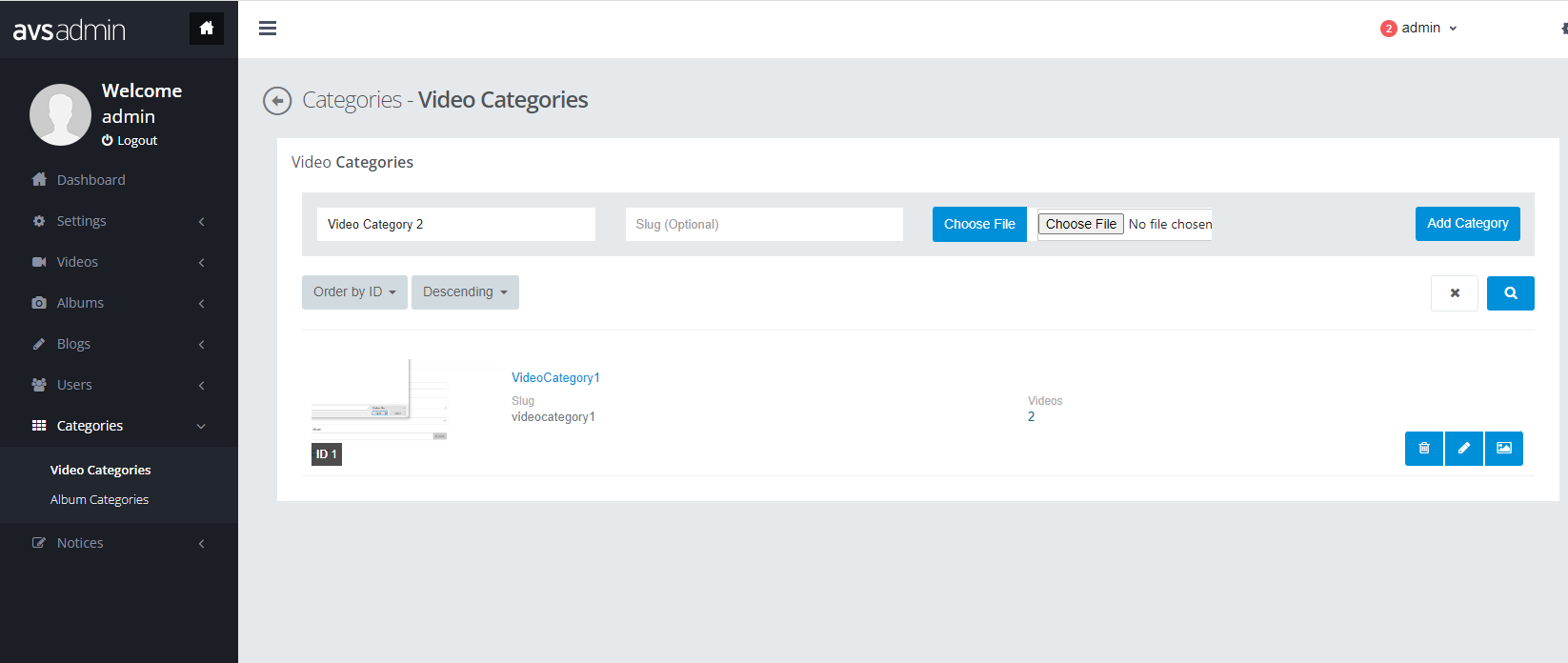
The name of video category should be unique. If you enter a name which is alread added, adding category will be failed.
Step 4. Add a user for uploading video
There are two ways of signing up a user, signing by clicking Log in button on homepage, and adding a user under the administrator privilege. This guide shows how to add a verified user under the administrator privilege. For more information about user sign-up, please click Here.
1) Click on Users / Add Users / Add User menu on the left sidebar, then Add User page will be displayed.
2) Fill in user information such as Username, Email, Password and Confirm Password.
3) Optionally, you can enter First Name and Last Name, or change user's gender. In addition, you can upload an avatar of this new user.
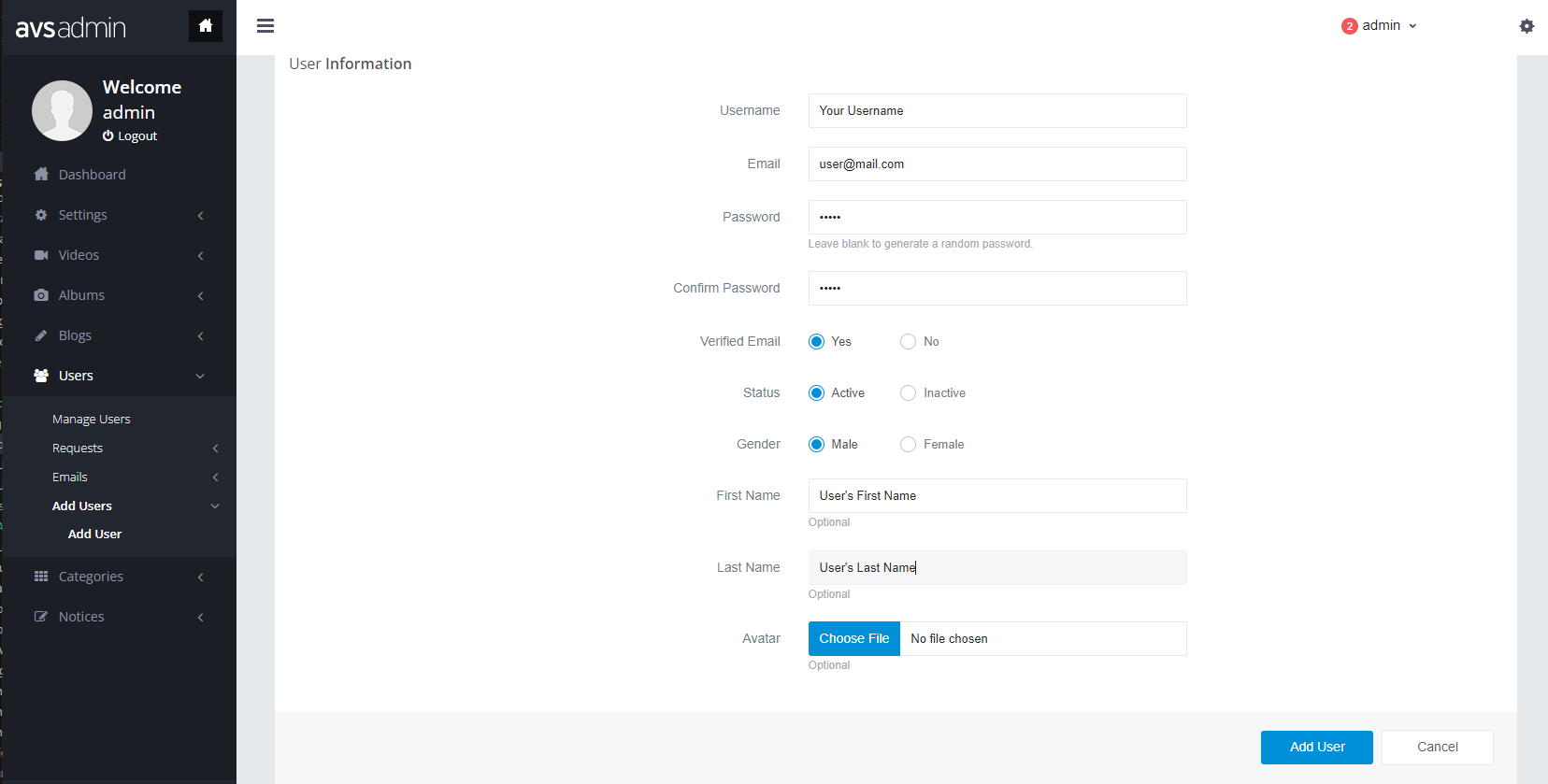
The user information can be managed in User Management page. For more information about user management, please click Here.
Step 5. Upload a video
1) Login to the website as user that you created. Visit: http://www.yourdomain.com/login, or click Login button on top right of homepage.
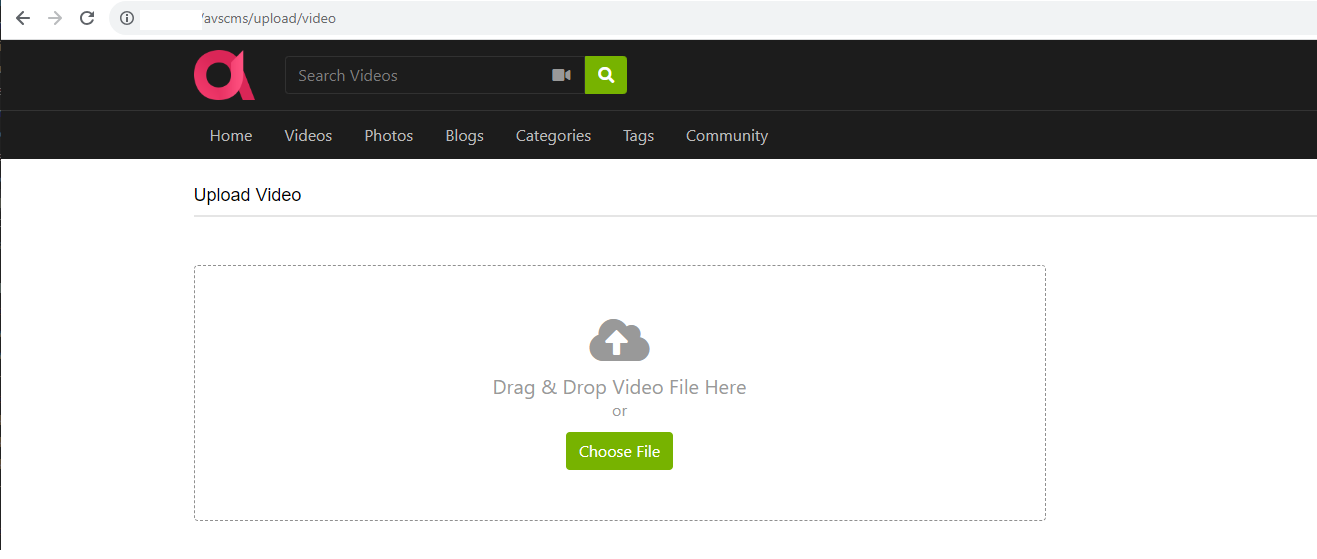
2) Click on the UPLOAD button on top right of menu bar. You have an option to upload videos or photos.
3) Click on Videos icon.
4) Choose a video file from your pc, or drag and drop a video file on the video file box.
5) In the next page, fill in the video information such as Title, Description and Tags, and choose Category.
If you don't want to leave any digital footprint due to privacy reasons, choose "Anonymous" option as "Yes - anonymous". You can also choose "Privacy" option as Public or Private. For more information about this, click Here.
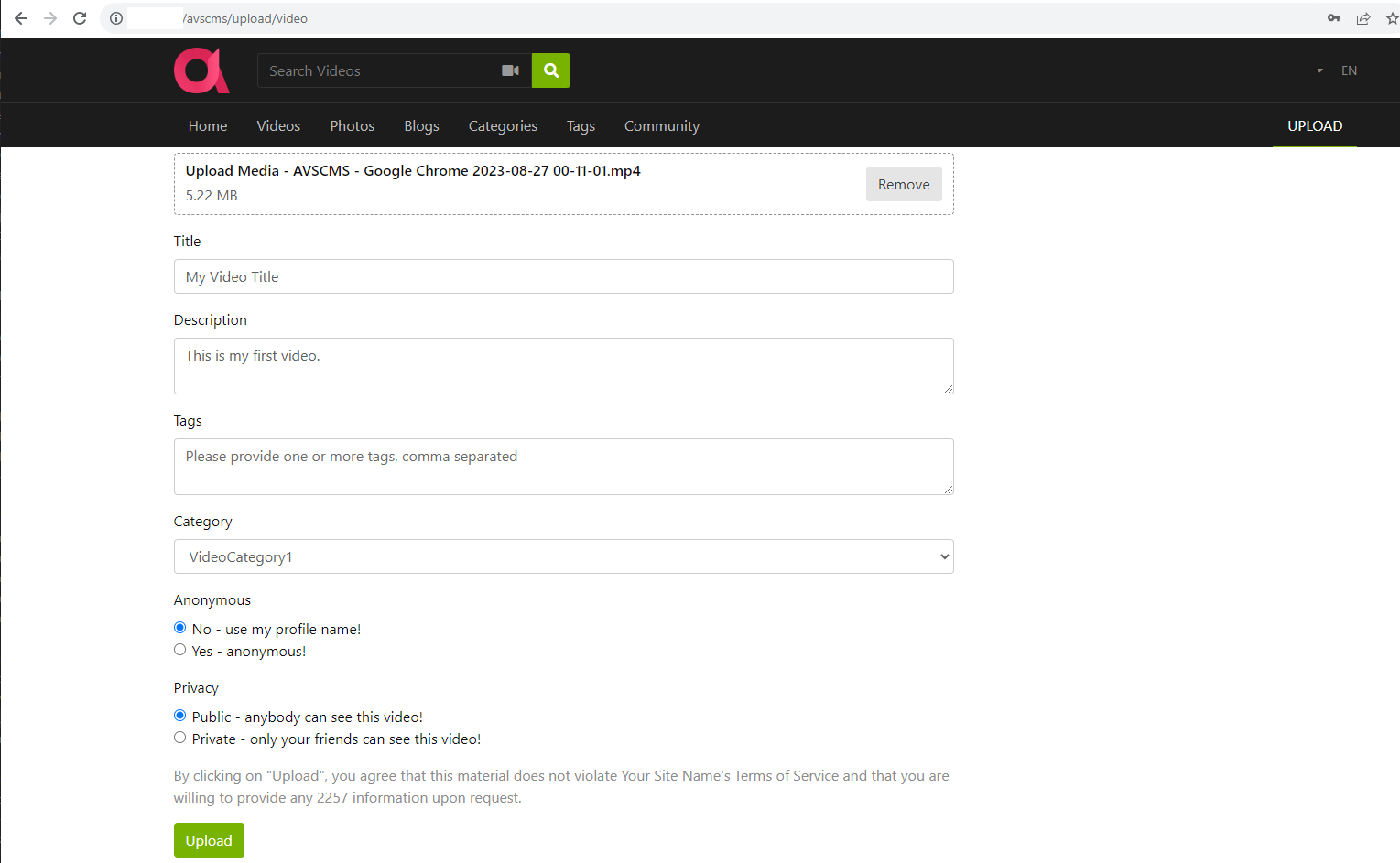
6) Press Upload button.
7) Back to siteadmin page and click on Videos / Manage Videos menu of the sidebar. Uploaded videos will be listed in this page with suspended status. To activate a video, please click on ✅Check button. In a few seconds or minutes, it will appear on Videos page.
If it does not appear after few hours, please review the server requirement page again.
Feel free to submit a ticket to support department Here if you still unable to figure it out.